
Mobile app (beta)
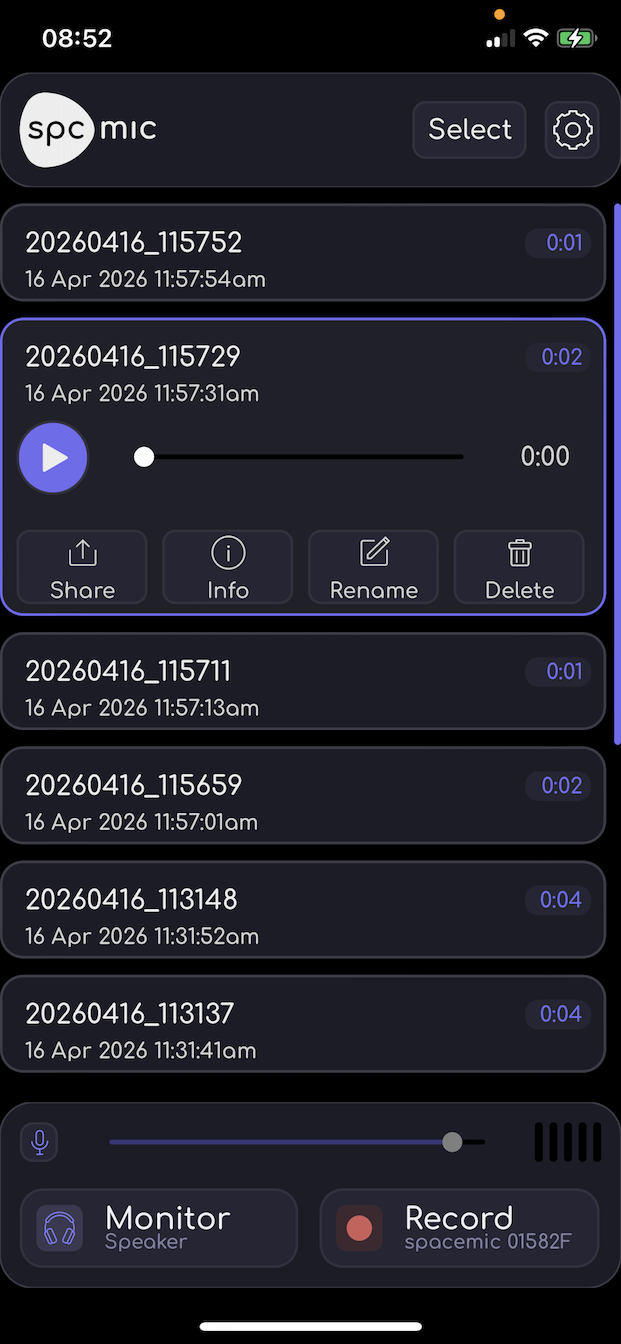
The mobile app for iOS and Android makes ambisonic recording with the spacemic very convenient. It is currently in public beta and can be downloaded here:
The app supports recording in raw format and ambisonics up to 5th order resolution.
Firmware
The mobile app requires spacemic firmware version 2.x or newer. To upgrade the firmware, use the macos / windows app version 0.9.x (available under support -> other versions).
Supported devices
- iPhone 14
- Xiaomi POCO X7
The app supports a wide range of devices. The ones listed here are just the ones that we have verified to work with continuous recording in 5th order ambisonics. Older and slower devices may also work, or may only work for raw recording, lower resolution or shorter recordings. Those that only support short recordings will usually display a high temperature warning several minutes before the recording stops due to cpu overload.
Connection
Older iPhones use a Lightning connector rather than a USB C connector. These require an adaptor. Apple provides one under the name “USB Camera adapter”. However, this adaptor limits the amount of current that it provides to external devices, and can only be used with the spacemic with a battery pack or other external power supply. A better solution is to use a third-party adaptor like the Loydia USB Camera Adapter for iPhone/iPad [Apple MFi Certified]. This will power the spacemic from the iPhone’s internal battery.
Android devices and newer iPhones have USB C connectors and can be connected directly to the spacemic. However, some of these require a USB hub between the phone and the spacemic to achieve a stable connection. We provide a suitable one-port USB hub free of charge to our customers.
If you connect the spacemic after launching the app, the iOS version of the app will automatically detect it. In the Android version, you might have to click the settings icon and “ok” to detect it.
Recording gain
The spacemic has an extremely wide dynamic range, so the app includes a gain slider which enables you to produce files with a reasonable level that are easy to play back or include in mixes. However, all files are stored in 32 bit float format, which means that there is no adverse affect on sound quality from setting the level too low or to high. No clipping and no quantisation noise. If you discover that the level is too high or too low during a recording, you have the option of adjusting the recording gain in real time. However, it is usually better to just leave it and correct it in post. That way, the whole recording has the same gain.
Monitoring
The app has a live output which can be activated with the Monitoring button. The live output and file playback both use the same, simple first order stereo decoder. In the Android version of the app, the device used for audio output can be selected in the settings menu. That selection may be overridden if the selected device is not currently connected. On iOS, the output device is selected automatically, and the name of the current device is shown in the Monitor button. However, iOS will also automatically select the input device. Many potential output devices and headphone adaptors also support audio input, which causes iOS to select that input instead of the spacemic. You will see this in the Record button, which displays the name of the currently active input device. In such cases, you have to use a different monitoring device.
Be careful about the gain setting when activating monitoring! Open headphones and loudspeakers can cause feedback at high gain settings. You can use the microphone button next to the gain slider to activate the level meter without activating monitoring or recording.
Battery
The current version of the firmware does not support shutdown, so you should disconnect the spacemic from your phone when not recording, in order to preserve battery charge.